Plenio+
If you get mail notification or application notification that you have been assigned task you need to go in Planning application to check what you need to do.
- Open planning application on link: Plenio+ and Log In
- When you Log In you will see main screen:
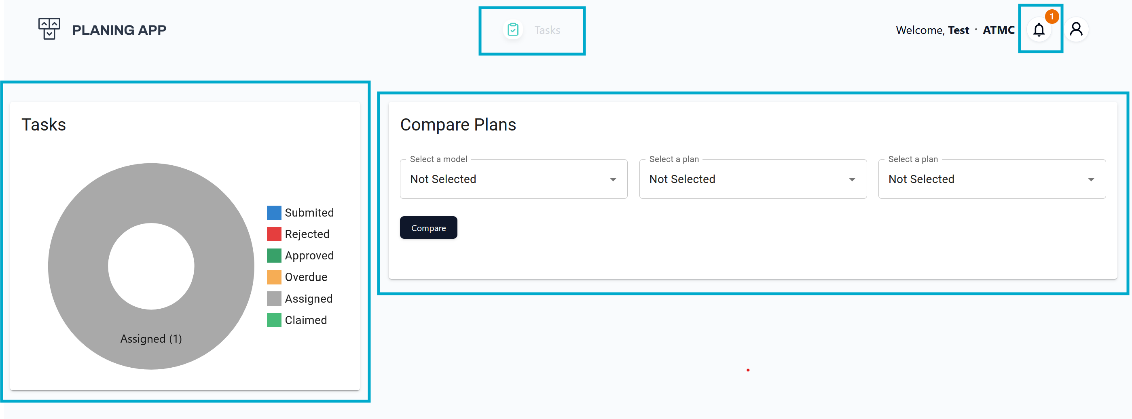
- On left side you can see graph with your tasks by task status
- Assigned – first task status – when someone assigned task to you
- Claimed – when you claim/take task for resolving
- Submitted – when you Submit your task for approving
- Approved – when your task is approved by your superior
- Rejected – when you task is rejected by your superior
- Overdue – when you didn’t finish your task by the due date. To finish task, you need to Submit task
- On right side you can Compare two plans:
- You need to select model which you want to compare
- After you select model then you need to select two different plan/process from that model to compare
- In middle of screen, you can see menu (depending on your user rights you can see more option)
- Tasks – open screen with list of all your tasks. On this screen you have possibility to do everything what you need to do with tasks (Claime, enter data, submit …)
- On right corner you have notification center and user profile page
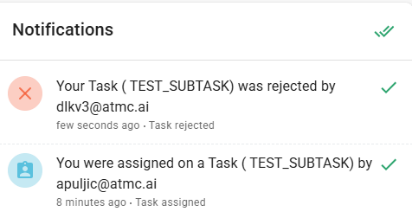
Notifications
For every action taken on a task, a notification will be sent to the relevant user. This includes actions such as assigning, submitting, rejecting, or approving a task, ensuring users stay informed about important updates.