Tasks
When you open task page you will see screen:
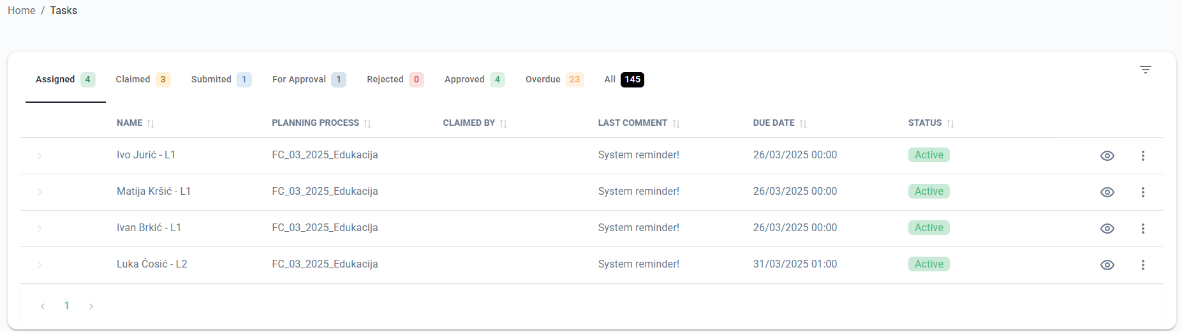
On this screen you can see all task assigned to you by status:
- All – list of all tasks assigned to you
- Assigned – list of tasks assigned to you but still you didn’t Claimed task
- Claimed – list of tasks you claimed and took for resolving
- Submitted – list of tasks you have submitted, that are not yet approved/rejected
- For approval – list of tasks that have been submitted to you, with options to approve/reject them
- Rejected – list of tasks which is rejected from your superior
- Approved – list of tasks which is approved from your superior
- Overdue – list of tasks which is overdue
On this page you will do everything what you need to do with your tasks.
Assigned tasks
If you have assigned tasks you will see on the list all your assigned tasks. On this status you have two possibilities:
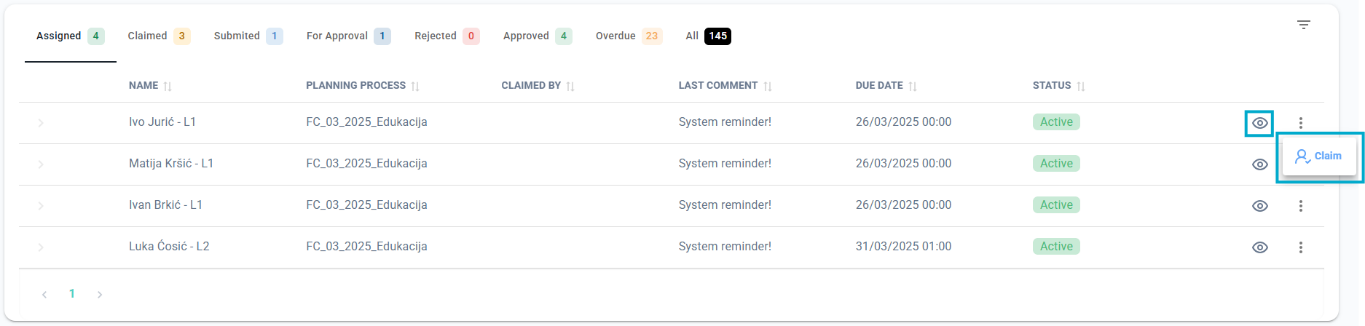
View data
To see data (open process in read only mode) click on eye icon on process/task which you want to see data. When you open read only you will see planning process:
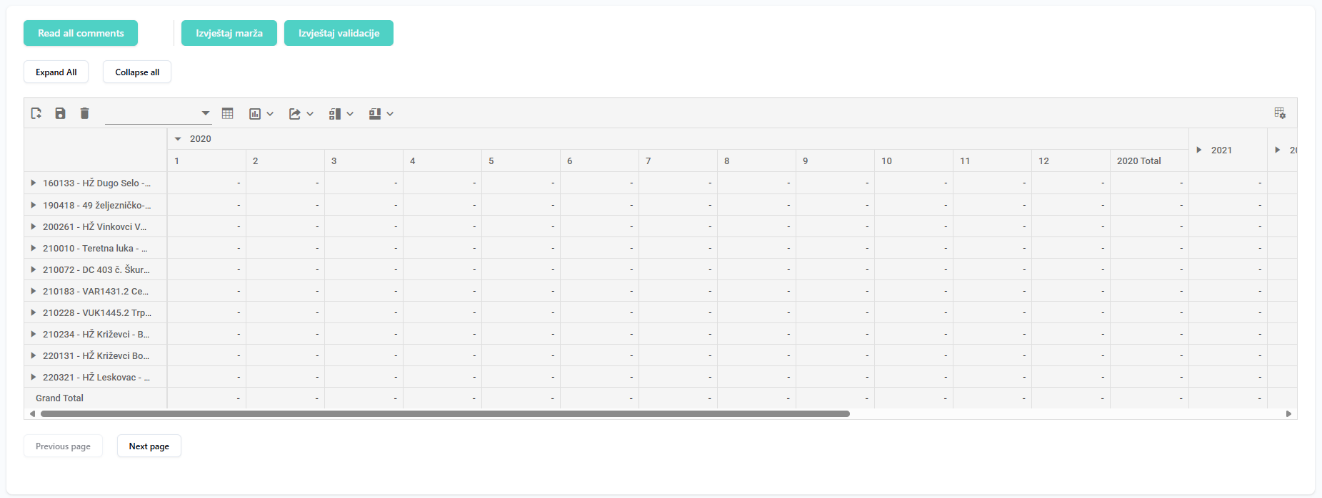
On this screen you can see all data which is imported or entered in this task (planning process).
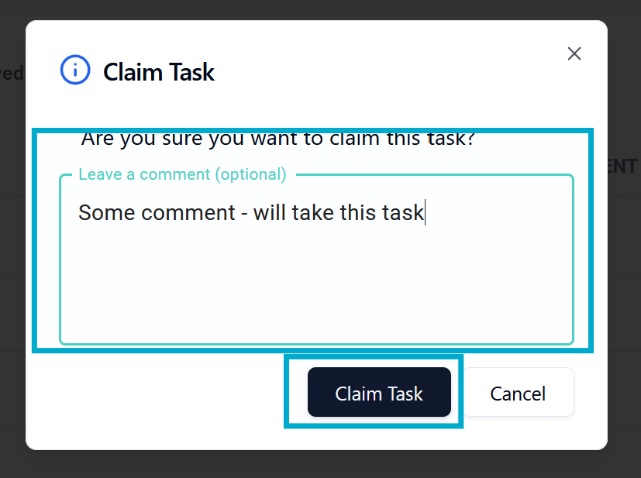
Claim task
If you click claim task – that means you will take responsibility for that task and only you will be able to enter data. After you click Claim task you will get pop-up window where you can insert a comment, and you need to submit your decision:
Claimed tasks
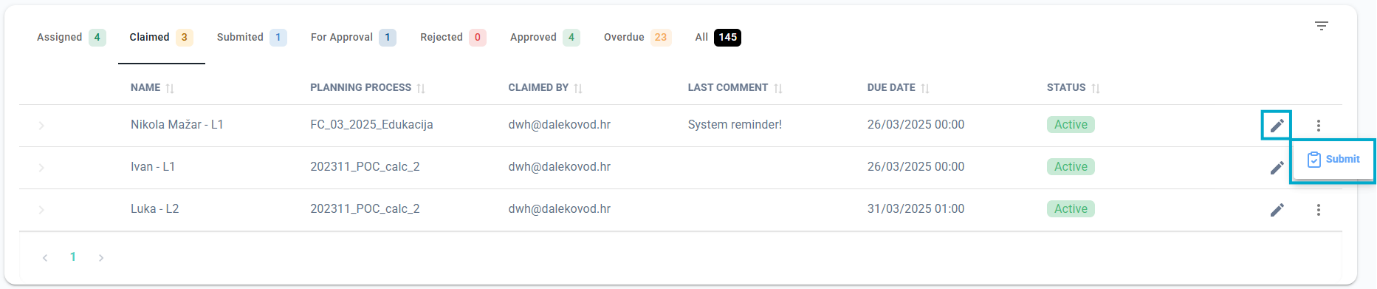
After a task has been claimed, it will show up in a list of claimed tasks, with two options:
Edit task data
To edit data click on pencil icon on task which you want to see data.
Cell editing
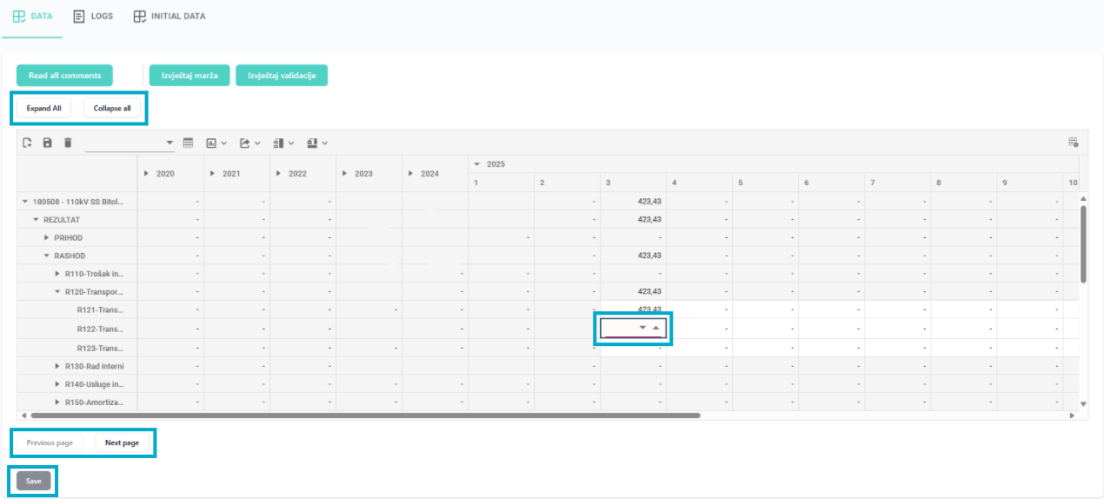
- To edit a cell, simply double-click on it and enter a number (use "," as the decimal separator).
- You can also press Enter to enter data into a cell.
- Use the arrow keys or the Tab key to move between cells easily.
Expanding and collapsing
- You can expand each row and column by clicking on the arrow element in the header
- Or you can use "Expand all" and "Collapse all" buttons to expand them all at once
Paging
- If there is too much data to fit into the table, data will automatically be separated into pages, you can go through pages by using "Previous page" and "Next page" buttons
Saving changes
- Your changes will be auto saved every minute, but you still have the option to click the "Save" button if there are some unsaved changes
Context Menu & Comments
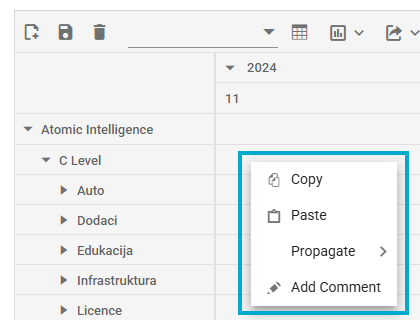
You can right-click on any cell to open a menu with helpful options:
Copy & Paste
- Easily copy and paste data from one or multiple cells by selecting them and choosing Copy or Paste from the menu.
Propagate
- Need to fill multiple cells with the same value? Use Propagate to copy a value left, right, or both in one click.
Comments
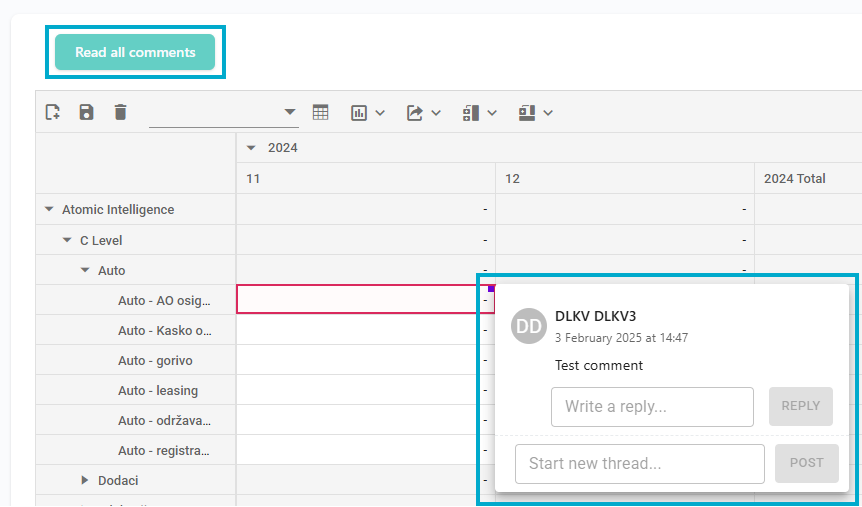
- Add a comment to any cell by selecting "Add Comment", which opens a comment window.
- To see all comments at once, click "Read All Comments" in the top left corner.
Submitting a Task
After making your edits, you can submit the task for review. Once submitted, the task will be sent to a reviewer above you, who will either approve or reject your submission. If approved, the task is finalized. If rejected, you may need to make further changes before resubmitting.
Submitted tasks
Once a task has been submitted, it will show up in a list of submitted tasks with an option to revoke a task:

Revoking a Task
After submitting a task, but before the reviewer approves or rejects it, you have the option to revoke it. Revoking the task will return it to its previous state, allowing you to make further edits before resubmitting.
Tasks for approval
Once a task has been submitted by user, it will show up for its task reviewer in a list of tasks for approval:

The reviewer (the user who claimed the parent task) has several options:
View data
The reviewer can click the eye icon to view the submitted data.
Approve or Reject
After reviewing the data, the reviewer can either approve or reject the submission.
- Approving a task will transfer all data from the approved child task to its parent task. Any future changes made to the parent task will not affect the child task or be visible in it.
- Rejecting a task will require the user to make further changes before resubmitting.
Take Over
If the reviewer needs to take full control of the task, they can click "Take Over." This will remove the current user’s access to view or edit the task.